 MailCode
Years of mail, on your own disk.
MailCode
Years of mail, on your own disk.
MailCode
Years of mail, on your own disk.
MailCode
Years of mail, on your own disk.
Tips › Import
Plenty of tools read a PST by pouring every message into one long list, and the year’s Sent Items, Projects and Clients folders are gone. MailCode files each message where Outlook showed it, under a folder you choose, searchable with the rest of your mail.
.pst files.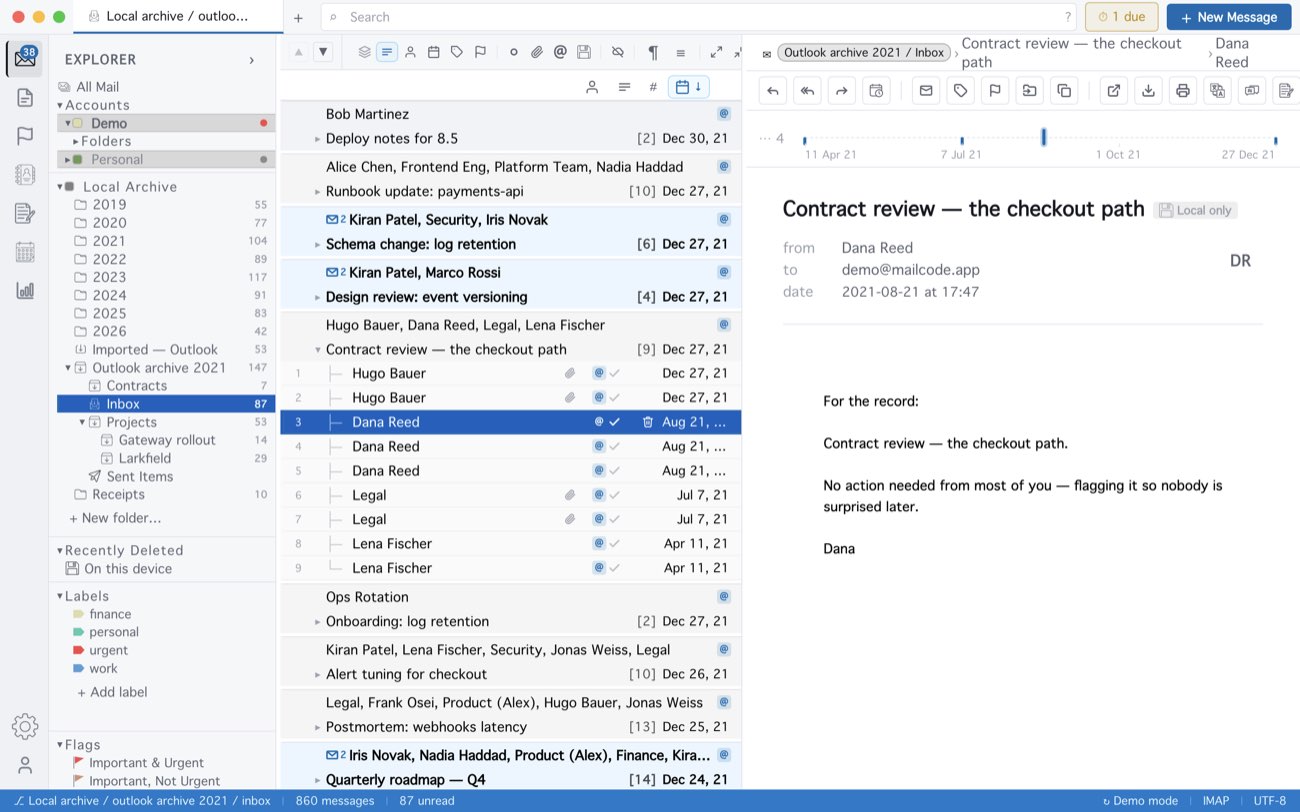
Mail already in the archive is skipped, so importing the same PST twice, or two that overlap, adds nothing. Mail Outlook kept loose at the top of the file goes into the folder you named, marked root of the file in the list. On Windows, Store messages as .eml files writes each message to a folder you choose and keeps only the search index in MailCode’s database; that folder has to stay connected. The Mac App Store version keeps those files inside its own storage.
MailCode is a mail client for Mac and Windows that keeps your mail in a searchable archive on your own disk. Free for 14 days.
Mac App Store Download for Windows